

SEO5 min read
What Search Engine Optimization Services Include (and What They Should Not)
The parts every good SEO service should cover, the shortcuts to avoid and how to compare proposals fairly.
We use necessary cookies to make the site work. With your permission, we'd also like to use analytics cookies to see how people use the site, and advertising cookies to measure our ads. You can change your mind at any time. Cookie policy
Your Google Business Profile is often the first thing people see when they search for your business or your service nearby. This guide covers setting it up, verifying it and improving it so it brings more calls and visits.
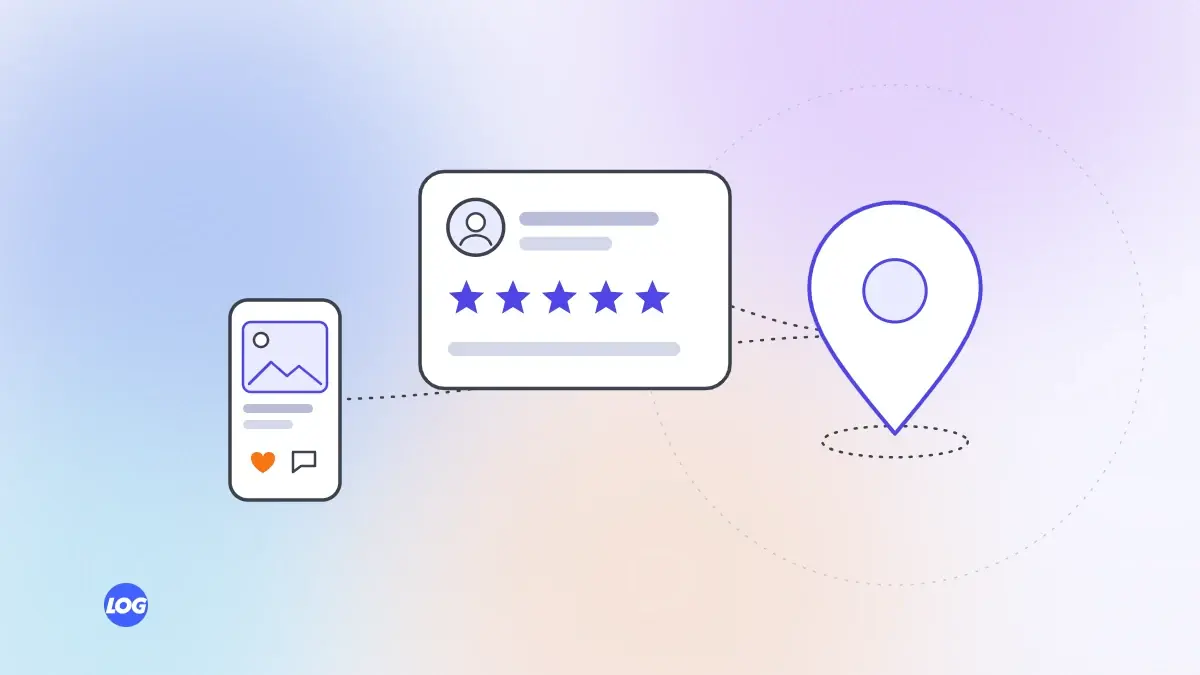
When someone searches for your business name, or for a service near them, Google often shows a box with a map, reviews, photos and contact details. That box comes from your Google Business Profile. For local businesses, it can bring more calls and visits than your website. Here is how to set it up and keep it working.
Search for your business on Google Maps. If a listing already exists, claim it. If not, create one through Google Business Profile. Use your real business name, exactly as customers know it and as it appears on your signage. Adding extra keywords to the name breaks Google's guidelines and can get the listing suspended.
Google needs to confirm that you are the owner. Depending on your business, verification may be by phone, email, a video recording of your premises or a postcard. Follow the steps Google offers your listing. Until it is verified, your changes may not appear.
Your main category tells Google what your business is, and it is one of the most important choices you make. Pick the most specific category that fits, such as "Dental clinic" rather than "Doctor". Then add a few additional categories for other services you genuinely offer.
Complete as much as you can:
Upload photos of your premises inside and out, your team and your work. Real, recent photos help people trust you and decide to visit. Add new ones regularly.
Ask happy customers for reviews with a direct link to your profile. Reply to every review, thanking people for good ones and responding calmly and helpfully to criticism. Never offer gifts or discounts in return for reviews, and never write them yourself.
Post updates about offers, events or new services. Change your hours before holidays. Check that your phone number and website still work. An out-of-date profile sends customers away.
Your profile shows how many people called, asked for directions or clicked to your website. Track these monthly alongside your website enquiries, so you can see what local search is worth to your business.
A well-kept Google Business Profile is the foundation of local SEO. Our search engine optimisation service includes profile management and review routines. For more first steps, see our SEO tips.
When we take on a Google Business Profile, we check the name, main category, services, hours and photos first, and compare the details with the website and the main directories. Many profiles have the wrong main category or missing services.
Then we add a simple routine: new photos each month, holiday hours set in advance, replies to every review and a short monthly note of calls, direction requests and website clicks from the profile.
Yes. Creating and managing a Google Business Profile is free. You only pay if you choose to run Google Ads, which can appear separately from your free listing.
Common reasons are that it is not verified, the main category is wrong, details are incomplete or inconsistent, or stronger competitors are closer to the searcher. Check verification and categories first.
No. Your business name should match your real name, as used on signage and documents. Adding keywords breaks Google's guidelines and can lead to the listing being suspended.
Check it at least monthly. Add new photos, post updates when you have news, set special hours before holidays and reply to new reviews. Regular updates help customers and show that the business is active.
Yes, if you serve customers at their location. Set a service area instead of showing an address. Businesses that only work online, with no in-person contact, are not eligible.
SEO5 min read
The parts every good SEO service should cover, the shortcuts to avoid and how to compare proposals fairly.

SEO5 min read
Why SEO prices vary so much, the factors that drive cost and how to tell whether a quote is good value.

SEO5 min read
SEO works better when it is planned with your ads, social media and website. Here is how each one supports the others.